How to install a porn app on your iPhone
Apple doesn't allow porn apps in the App Store, so you won't find one there. What you can do is add a site to your home screen from Safari. It gets an icon, opens full screen, and behaves like any other app. The steps are the same for any site. We use Quickie as the worked example.
Before you start
Use Safari for these steps. They follow Apple's own guide, linked at the bottom of this page.
The first time you open the new icon, the site may ask you to sign in again. Sign in once and you're set.
The steps, for any site
- Open the site in Safari.
- Tap the More button (three dots). If your tabs sit at the top or bottom of the screen, tap the Share button instead, the square with an arrow pointing up.
- In the list that opens, choose Add to Home Screen. If it's missing, scroll to the bottom, tap Edit Actions and add it.
- Type a name. Whatever you enter here is the label under the icon.
- Leave Open as Web App switched on, so the icon opens the site like an app.
- Tap Add, and the new icon joins your other apps.
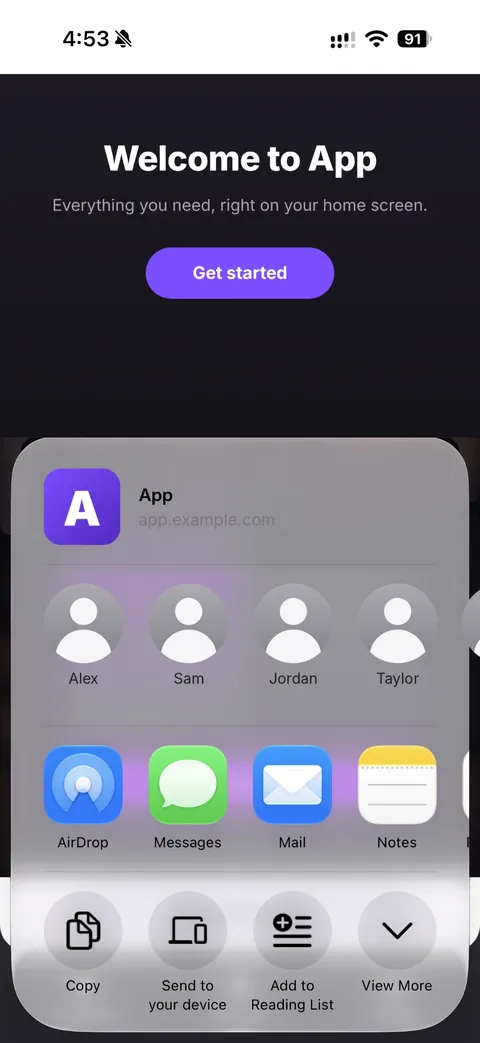
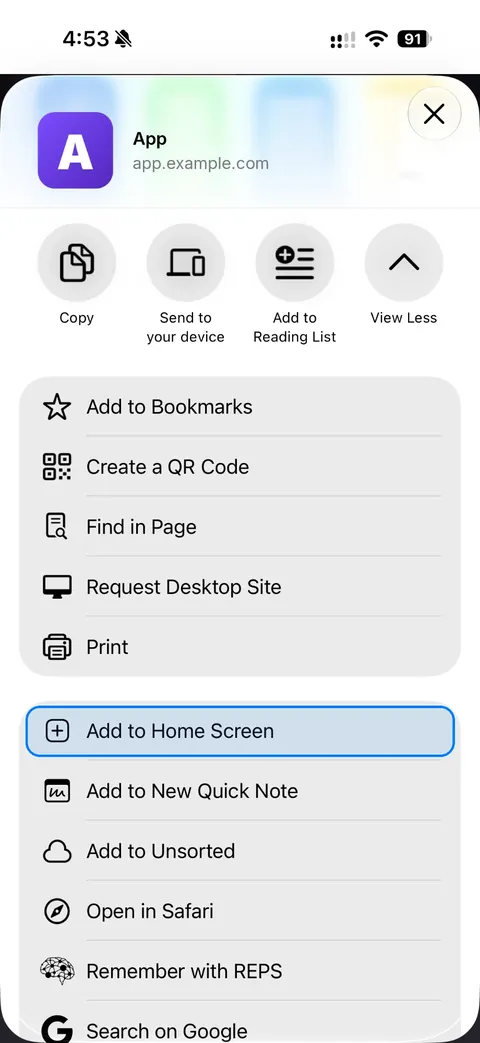
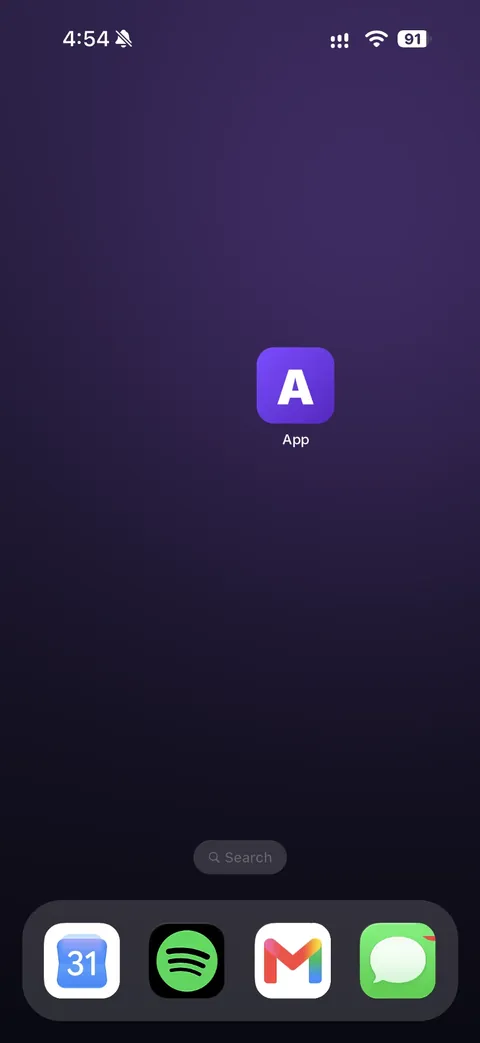
Worked example: Quickie
Quickie is a gay porn subscription that runs as a web app, so it installs this way.
- In Safari, go to go.quickie.app.
- Tap More (or Share), then choose Add to Home Screen.
- Keep the name Quickie or type your own, then tap Add.
From then on the icon opens straight into Quickie's feed, full screen.
Keeping it private
Give it a dull name
Step 4 lets you call the icon anything, so pick something nobody would tap. The picture on the icon comes from the site and can't be changed in Safari.
Move it off your first screen
The icon only appears on the iPhone you added it on, not on your other Apple devices. To keep it out of sight, press and hold an empty part of the home screen until the icons wiggle, then drag the new icon into a folder or onto a later page.
Use a private tab instead
If you'd rather have no icon at all, open the site in a Private Browsing tab. Safari keeps no history from private tabs. Since iOS 17, Safari can also lock private tabs whenever you leave them. Turn on Require Face ID to Unlock Private Browsing in Safari's settings. You'll usually have to sign in again each time.
Say no to notifications
A home screen web app can ask to send you notifications. Decline and nothing from it will show on your lock screen. You can change your mind later in Settings, under Notifications.
Check what your bank statement says
Because nothing is bought through Apple, there's no App Store receipt and nothing in your purchase history. The charge only appears on your card statement, under the company's billing name, which is often different from the site's name. Look for it in the site's help pages before you subscribe. For Quickie, the line on your statement reads QMI-HELP.com.
Removing it
Press and hold the icon, choose the option to remove it, and confirm. Deleting the icon doesn't cancel a subscription. Cancel from your account on the site.